It may not be as poppin’ as TikTok (as the kids definitely say) but Facebook remains a powerhouse for marketing and advertising, offering unparalleled opportunities to reach a vast audience across almost all demographics.
For businesses building their online presence from scratch, Facebook provides a solid and powerful foundation, often starting with organic engagement strategies like joining relevant Facebook Groups.
To maximize your success on the platform, your Business Page must be set up correctly and fully optimized. This guide walks you through the essential steps, from initial creation to fine-tuning your settings for maximum visibility and impact.
Table of Contents
Creating Your Facebook Business Page
Facebook Business Pages are managed through your personal profile, making the creation process straightforward on a desktop computer.
Note: The video above shows how to create an FB page on desktop/web app. To see how to create a Facebook page on a mobile device, follow this link.
Step-by-Step Page Creation
- Log into Your Personal Facebook Account: The personal profile serves as the administrative base for your new Business Page.
- Access the Menu: Click the nine-dot menu icon, usually located in the top-right corner of your screen.
- Find the Business Tools: Within the menu, navigate to the section dedicated to business tools to begin the page creation process.

- Enter Core Page Information:
- Page Name: Choose a name that accurately represents your business, keeping in mind character limits and Facebook’s capitalization rules.
- Categories: Select one or more categories that best describe the industry or nature of your business.
- Bio: Write a brief, engaging summary (up to 255 characters) that tells visitors immediately what your page is about and what value you offer.
- Add Optional Contact Details: While optional, adding a website link, phone number, email address, and physical location is highly beneficial, especially for local businesses. This drives traffic and conversions directly from your page.
- Hit Done: Once the core information is entered, click “Done” to finalize the creation of your Facebook Page.
Essential Branding and Initial Setup
Once the page is live, focus immediately on establishing your brand identity and providing clear calls to action.
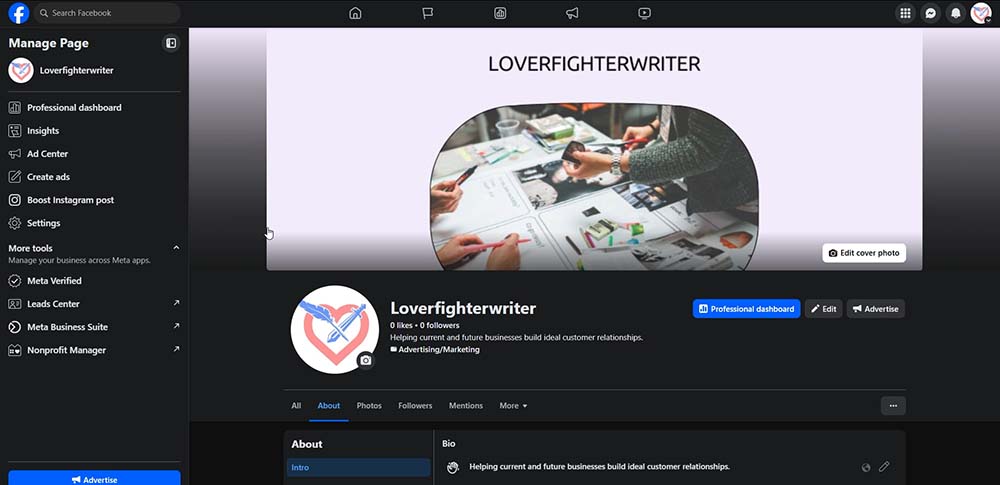
Profile Picture and Cover Photo Magic
Your visual assets are crucial for establishing credibility and making a strong first impression.
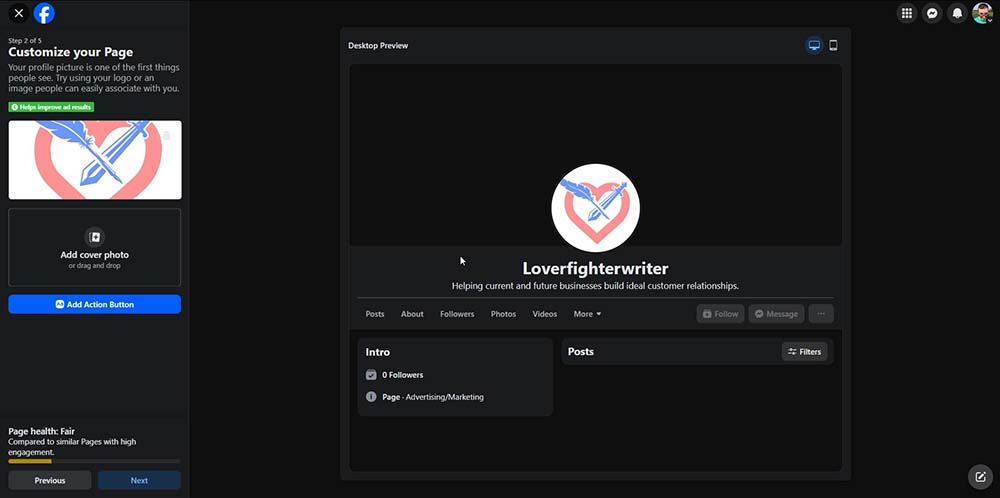
- Profile Picture: Use a clear, professional image that immediately represents your brand (e.g., your logo). This prevents your page from looking like a scam or unfinished account.
- Cover Photo: This is prime real estate. Use tools like Canva to design a high-quality banner.
- Recommended Dimensions: Aim for 851 pixels wide by 315 pixels high.
- Pro Tip: Cover Photo CTA: Include a compelling, button-like image with a Call to Action (CTA) in your cover photo design. Then, in the photo’s comment section, include a direct link to your website, landing page, or sales funnel to drive immediate traffic.
Configure Your Action Button
The Action Button (or Call-to-Action button) is the single most important prompt on your page, encouraging visitors to take a specific action.

Select the option that best suits your business goals. Common options include:
- Book Now
- Sign Up
- Start Order
- Get Tickets
- Send Message (great for customer service)
- Call Now (ideal for local services)
- Visit Website / Contact Us
Craft a Comprehensive “About” Section
Use the “About” section to tell your brand story and provide all necessary details.
- Category & Details: Ensure your business category is accurate. Decide whether to enable customer reviews; many businesses choose to turn them off to mitigate spam or irrelevant feedback.
- Contact Information: Complete your address, hours of operation, service area, and founding date.
- Crucial Links: Include links to all your other online platforms—your website, YouTube channel, Instagram, and Threads. Links are vital for traffic and cross-platform growth.
- Services & Offers: Clearly list the services you provide and any special promotions or affiliate links you wish to highlight.
- Legal & Media: If applicable, include important assets like your brand logos and a link to your privacy policy.
Advanced Optimization and Settings
Optimizing your page settings ensures you maintain full control over your content and utilize Facebook’s management tools efficiently.

Tap the image above or follow this link to watch the Facebook page setup tutorial on YouTube.
Customize Your Username and URL
After creation, customize your page’s username (e.g., @YourBusinessName). This allows you to claim a memorable and relevant name and creates a clean, customized URL (e.g., facebook.com/YourBusinessName) for easy sharing and branding.
Controlling Content and Tagging
Preventing spam and irrelevant content is essential for maintaining a professional image.
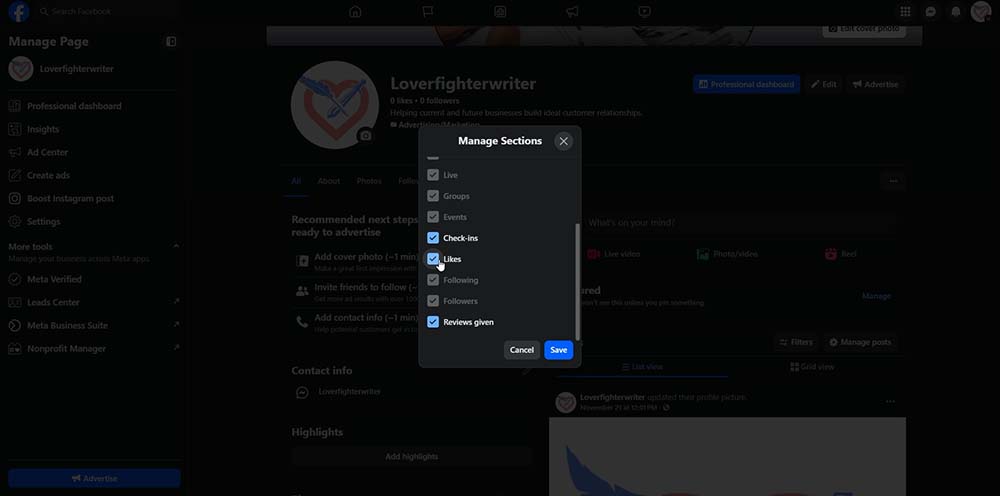
- Publishing Control: In your Page and Tagging settings, set “Who can publish on your Page” to “Only Me” (or an Admin role). This prevents unsolicited posts from showing up on your main feed.
- Tagging Control: Set “Who can see posts you’re tagged in” to “Only Me.” This allows you to review and manually approve any posts you are tagged in before they appear publicly on your page.
- Sharing to Stories: Allow sharing of your posts to users’ stories to increase organic visibility.
Utilize Meta Business Suite and Leads Center
The Meta Business Suite (found at business.facebook.com) is the central command center for serious management and optimization.
- Meta Business Suite: Use this separate platform for professional management, including publishing content, scheduling posts, and accessing the powerful Facebook Ads platform.
- Leads Center: This is where you can access and download information gathered from messages and Facebook Lead Ads, helping you manage potential customer contacts effectively.
Payments, Advertising, and Linking
- Payments: Set up a payment method within your settings to prepare for running advertisements.
- Advertising Strategy: Understand the difference between boosting posts and using the Ads platform. While boosting is fine for occasional, basic visibility on specific posts, use the dedicated Meta Ads platform (via Business Suite) for any significant ad spend and complex, targeted campaigns.
- Linking Accounts: Ensure your Instagram and Threads accounts are formally connected to your Facebook Business Page for seamless cross-posting and ad management.
By following these creation and optimization steps, your Facebook Business Page will be professional, fully functional, and ready to serve as a powerful hub for your digital marketing efforts.
Facebook Marketing Fundamentals
Once your page is fully established, the next phase is actively marketing your business to grow your audience and drive results.
Facebook offers two primary avenues for reaching users: organic engagement and paid advertising.
Organic Marketing: Building Community and Trust
Organic marketing focuses on generating reach and engagement without direct ad spending. This strategy is essential for building a loyal community and establishing authority.
- Content Strategy: Post valuable, engaging content consistently. Prioritize content that encourages comments, shares, and reactions (e.g., polls, questions, behind-the-scenes looks). I use Socialbee to schedule weeks or months of content at a time.
- Group Engagement: Actively participate in relevant Facebook Groups. Provide expert advice and value, subtly drawing attention back to your Business Page. Avoid overt spamming or self-promotion in these groups.
- Live Video: Utilize Facebook Live for Q&A sessions, product demonstrations, or exclusive announcements. Live video often receives prioritized visibility in the Facebook feed.
- Post Frequency: Maintain a steady, manageable posting schedule. Consistency is more important than volume.
Paid Marketing: Scaling Reach with Facebook Ads
For rapid growth and precise targeting, paid advertising via the Meta Ads platform is necessary. This allows you to reach users beyond your current follower base.
- Targeting Precision: Leverage Facebook’s robust demographic, interest, and behavioral targeting options to show your ads only to your ideal customer profile.
- Objective-Driven Campaigns: Always set your campaigns based on a clear objective (e.g., brand awareness, traffic, lead generation, conversions). The platform optimizes delivery based on this goal.
- Audience Types: Utilize different audience types for maximum efficiency:
- Custom Audiences: Target people who have already interacted with your business (e.g., website visitors, email list).
- Lookalike Audiences: Target new people who share characteristics with your best existing customers.
- Saved Audiences: Target cold audiences based on demographics and interests.
- A/B Testing: Continuously test different ad creative (images/videos), headlines, and body copy to determine which combinations yield the best return on investment (ROI).
Need help with your marketing or offer development? Contact me to see if we’d be a good fit to work together.